 SUPER MENU
Super Menu
English · Français
Discover the application · Download Super Menu
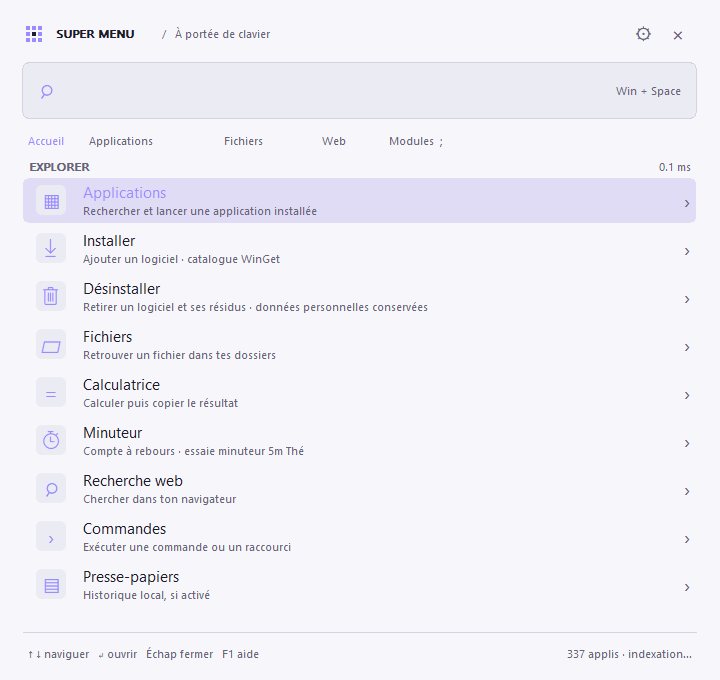
A native Windows launcher and search engine, written in Rust and Win32. A discreet window, a global shortcut, keyboard search. The project draws on Walker's provider and customization ideas, with an independent implementation designed for Windows.
Windows 10 and 11, x64. The standalone executable is about 1 MiB (1 079 808 bytes for version 0.6.18). Its exact size may vary with the toolchain; the performance report describes the size reductions in versions 0.6.1, 0.6.13, 0.6.15, 0.6.16, 0.6.17 and 0.6.18, the method and the tradeoffs.
The program uses Windows controls and APIs: no embedded browser, no .NET installation, and no remote service needed to search applications or files. Search works on an in-memory index; rebuilding runs in the background. A local cache speeds up subsequent starts. File changes received while the menu is hidden are batched until it opens; results already in memory appear before the update. Application shortcuts and explicit requests still update in the background.
Search keys are prepared during indexing; typing filters candidates and selects the best results without sorting the entire catalogue. The menu keeps its fixed providers and translated text in memory, and reuses its UTF-16 conversion storage and Windows drawing resources. Cache restoration uses a read-only file view; saving serializes borrowed items without copying the entire index. Reproducible engine, cache and menu measurements are described in the testing guide.
The measurements separately compare search over 20 000 items, cache restoration and menu drawing. Default application search and cache operations improve on the tested machine; generic scenarios and display latency remain sensitive to the build profile and PC conditions. The detailed report also publishes these limitations. 267 Rust tests, two optional cache/memory measurements and 1 275 Windows assertions pass, including 146 assertions exercising real isolated installation, update and uninstallation tests.
Languages
On first launch, a small window offers Français or English. French is built in. English is a JSON file of about 45 KB, downloaded only when first selected and kept in %LOCALAPPDATA%\SuperMenu\languages\en.json. Subsequent starts use this cache without a connection. If downloading fails, French can still be selected.
To change it: Settings → Language → Change…, then Save. The requested file is fetched in the background if it is not already available. With updates, only the selected downloaded language is refreshed once per version to translate new text. The translation is applied without restarting; software names and commands remain unchanged. No additional HTTP library or web interface is embedded: downloading uses Windows WinHTTP.
Translations can be edited and are versioned in locales/.
Automatic updates
Updates are enabled by default and can be disabled in Settings → Automatic updates. An initial check is scheduled thirty seconds after launch, then at most once a day, on a separate worker. Opening the menu and typing never wait for a connection. Check for updates, in the notification-area icon menu, also allows a manual check.
Downloads come only from this repository's official releases, over HTTPS. Their size, SHA-256 digest published by GitHub and Windows format are verified before any execution. Redirects are restricted to the expected GitHub hosts. No account, GitHub token or new service is required.
An update waits until the menu, settings and About windows are closed, no launch or software operation is running, and no timer remains, including paused timers and completed timers awaiting acknowledgement. A second validation just before shutdown guards against reopening or a new timer. The helper waits for the old process to exit completely, replaces the program and restarts it in the background. Settings, data, usage history and shortcut choices are preserved.
An installed copy uses the existing silent Setup; a portable copy replaces only its supermenu.exe in the same directory. If replacement fails, the previous version is kept and restarted when it remains available. The latest result is saved in %LOCALAPPDATA%\SuperMenu\updates\result.txt. Updating removes no personal files. Clipboard history remains exclusively in memory: it clears on restart, as with a normal exit.
Include prereleases is enabled by default for 0.x versions; a fresh 1.x installation targets stable versions. Drafts and equal or older versions are ignored. The already selected downloaded language is refreshed once per application version to translate new text; French remains built in. Disabling automatic updates prevents new checks and automatic application.
An initial installation of 0.6.18 is required to use this mechanism: earlier versions do not contain it.
Usage
About opens a native window inspired by system information screens: a large Super Menu heading, hardware (processor, graphics card, display, memory and system disk), Windows edition and version, uptime and application information. It uses the menu's theme and accent color. Available from the home screen, with ; à propos, in the System module (! à propos) or from the notification-area icon. Information is read locally when opened; collection does not slow down launcher startup. The GitHub button opens the project repository, and Escape closes the window.
Download SuperMenu-Setup-x64.exe from the releases and open it. The installer places the application in %LOCALAPPDATA%\Programs\Super Menu and creates its Start menu shortcut without administrator rights. The desktop shortcut and starting with Windows are optional and disabled by default. The final page offers to open Super Menu.
On first launch, the menu appears. After that, Win + Space shows or hides it. A notification-area icon also lets you open it and exit the program. The portable version remains available in the ZIP: extract it and run supermenu.exe.
To update an installation, open the new installer: it cleanly closes the instance from that directory before replacing the program and preserves shortcut and startup options. A software installation or uninstallation in progress prevents replacement; finish that operation and try again. Uninstall Super Menu through Windows Settings → Apps; personal settings, languages and caches are preserved. The installer is a separate NSIS-built program: no installation engine is loaded by the launcher.
Only supermenu.exe is needed to use the application. The other archive files are documentation, the license, a performance report and an example configuration. Ctrl + Backspace deletes the previous word or the selection in search; Ctrl + Z undoes that deletion.
During index updates, the selection follows the same item and the list keeps its position while that item stays at the same rank. If a result disappears, the selection stays on the nearest valid row. A new search starts at the first result. This also applies to clipboard, open-window and timer refreshes.
Home tabs and modules display their shortcuts: Applications @, Install +, Uninstall -, Files /, Calculator =, Web search ?, etc. Clicking a module inserts its prefix; it can also be typed directly into search. About displays its search ; À propos.
When launching an application, a small “Launching [application]…” pop-in appears immediately for two seconds, at the bottom of the menu's display. It shows the application icon, centered on a transparent background, and uses the menu theme. If its icon is not available yet, the Super Menu symbol is shown while it loads in the background; its arrival does not extend the two seconds. The message lets clicks pass through and does not take focus. Opening runs in the background: the menu can be reopened with Win + Space while an application starts. Reopening the menu hides the pop-in; the launch response does not close the reopened menu.
Repeated confirmations of the same application are coalesced during those two seconds and while Windows processes the request. An error removes this guard so the user can retry and displays the Windows message. The pop-in confirms an open request; its duration is fixed and does not depend on the application window appearing.

Installed applications display their actual Windows icons, extracted from executables, Start menu shortcuts and Microsoft Store applications. They are centered in their badges and adjusted to the display resolution. Loading runs in the background for visible results; an in-memory cache limited to 256 icons avoids reloading them while typing. F5 also refreshes these icons. No logo is downloaded, and no additional icon pack is needed.
If Windows provides no icon, the generic pictogram remains visible. Install and Uninstall actions keep their distinct pictograms; absent software may have no icon resource on the computer. Other pictograms use the system Segoe MDL2 Assets and Segoe UI Symbol fonts. Centering uses the symbol's visible bounds to compensate for each font's margins and baseline.
Searching without a prefix searches applications: edge first shows matching applications, then their “Uninstall” action. An uninstalled application from the built-in catalogue appears with the “Install” subtitle. Files and directories are searched explicitly with /, for example / edge. @ restricts results to applications to launch; + shows only software to install and - software to uninstall. The home menu also contains Install and Uninstall entries.
A name such as steam searches contiguous letters without returning Stream Deck or Telegram. Word initials (vsc for Visual Studio Code) and short abbreviations (ffx for Firefox) remain accepted. Spaces between words can be omitted, as in firefox for “Fire Fox”. Shortcuts named “Désinstaller…” or “Uninstall…” are excluded from applications to launch, including in the old cached index; uninstallation uses the corresponding software-management actions.
Windows already uses Win + Space to change the input language. Super Menu takes priority while running. Choose another shortcut in settings if that input-language switch must remain available. The JSON file also allows a custom shortcut such as Ctrl+Alt+Space.
| Input | Provider |
|---|---|
firefox |
Application then uninstallation, or installation if Firefox is absent |
; |
Provider menu |
minuteur 5m Thé |
Countdown with an alert |
@ |
Already installed applications |
+ firefox |
Catalogue software to install |
- firefox |
Installed software to uninstall |
/ |
Indexed files and directories |
= (15 + 5) * 3 |
Local calculator |
? rust windows |
Web search in the default browser |
> |
Custom commands and explicit shell execution |
: |
Clipboard history, if enabled |
. |
Symbols to copy |
~ |
Open windows |
! |
System actions |
Arrow keys select a result and Enter activates it. Escape clears search, then hides the menu if search is already empty. Tab opens the provider menu. Ctrl + Enter opens a file's parent directory. F1 shows help, Ctrl + , opens settings and F5 refreshes the index. A shell command runs only after confirmation with Enter. Calculation results, symbols and history are copied to the clipboard.
Optional Steam games
In settings, select Installed Steam games, then Save to add games registered by Steam on Windows. The option is disabled by default, including after updating. Games appear among applications with their local icon and the Steam game subtitle; Enter delegates their launch to Steam.
Detection reuses the existing registry reader and does not scan game directories. No SDK, account, download or new dependency is needed. Icons load only for visible results. Generated games are excluded from the main cache and rebuilt in the background when the option is enabled. Disabling and saving removes these entries and purges loaded icons, even if an earlier indexing task finishes later.
Existing Windows shortcuts and uninstallation information remain available as before. This first integration covers registry entries Steam App <AppID>; a game missing from the registry is not added automatically. The corresponding JSON setting is "steam_enabled": false.
Installing software
Type firefox: if Firefox is not installed, the result says “Install · Browser · WinGet”. Select it and press Enter to open a console showing download and installation progress. Once complete, Super Menu rebuilds the application index; the software becomes a normal launch result. The console closes automatically two seconds after the outcome, including on error. A Windows permission prompt may appear depending on the software.
Suggestions come from a built-in catalogue of 245 applications, including the 236 applications from Chris Titus WinUtil: browsers, messaging, development, documents, games, Microsoft tools, multimedia, professional tools, self-hosting and utilities. + browses absent software; + syncthing, + gh or + teamspeak6 also target command-line tools and distinct editions. The catalogue does not cover every WinGet package. The Start menu, Windows applications and uninstallation registry identify software already present, including software installed without WinGet. Detection runs during indexing; no network request or package-manager command runs while typing.
Only useful names, categories, aliases and identifiers are compiled into src/package_catalog.rs. WinUtil descriptions and scripts stay outside the binary. The snapshot and its revision are kept in catalog/ with their MIT notice. To update this catalogue, a maintainer runs pwsh scripts/update-package-catalog.ps1 -Update -Revision <SHA complet de WinUtil>, checks the diff and runs tests. Without -Update, the script regenerates the Rust file locally; -Check verifies reproducibility without a network connection. This operation does not run at Super Menu startup.
This feature uses WinGet, supplied by Microsoft App Installer. If unavailable, the console explains how to install App Installer from the Microsoft Store. The launcher and its search also work without WinGet. Super Menu downloads no additional package manager.
An old Google Chrome registration in Windows no longer hides its installation when both its registered executable path and known locations are absent. This check runs in the background, then keeps its result in memory. chrome and + chrome then offer Install; - chrome retains explicit access to remove the remaining registration. On confirmation, the helper checks the executable again and reinstalls this software if necessary, even if WinGet still lists it in its inventory. A normal existing installation is unchanged, and uncertain presence does not trigger reinstallation.
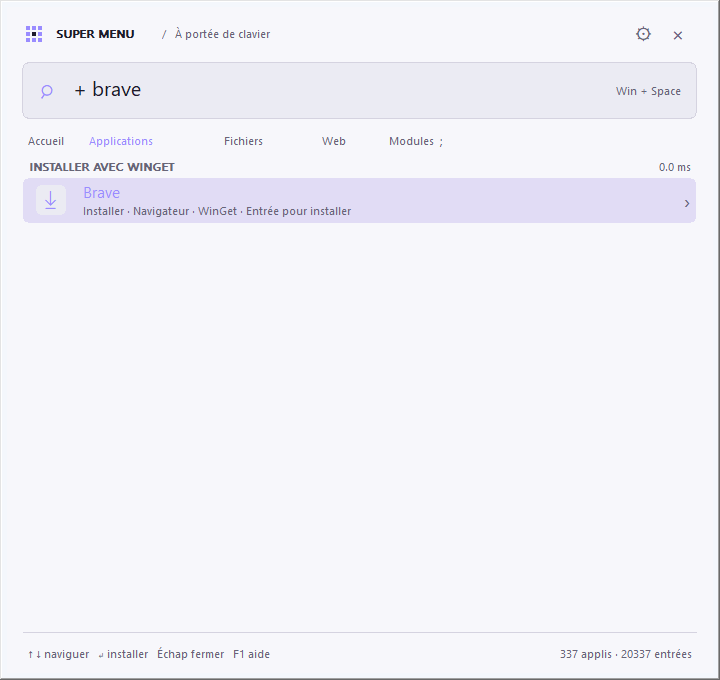
An installation starts only by confirming an “Install” result. The command targets the exact catalogue identifier and source: winget, or msstore for ChatGPT Desktop and WhatsApp Desktop. The subtitle identifies Microsoft Store for those two applications; no other package manager is needed. The command accepts package and source agreements and uses --no-upgrade to avoid upgrading software already installed. An additional presence check precedes installation. Errors appear in the console; a failure allows retrying. A search query is never passed to a shell to install software.
Uninstalling software
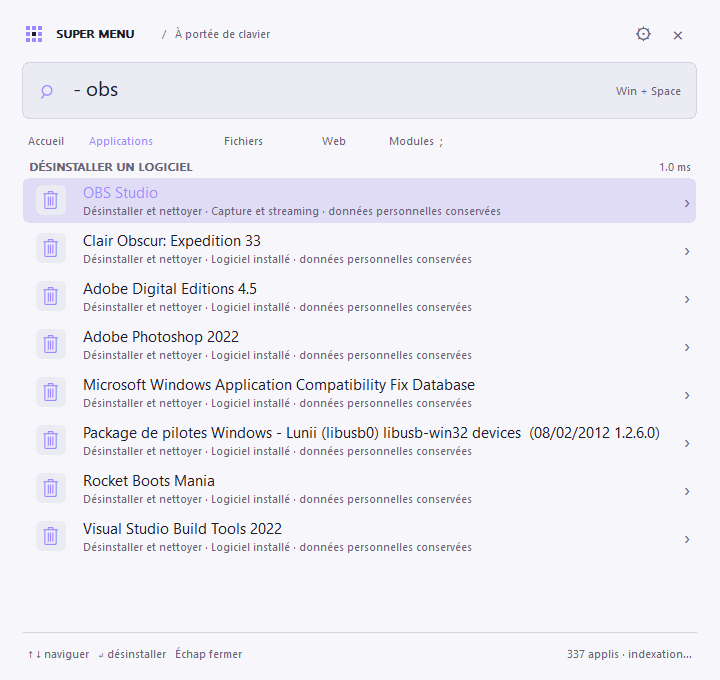
Choose Uninstall in the menu, or type - chrome, to browse installed software. With a simple search such as chrome, the launch result stays first; an “Uninstall and clean up” row removes the software directly from this search.
Enter displays one confirmation for uninstallation and cleanup, with No selected by default. Windows asks for administrator rights if the software is installed for the entire computer, then the console shows progress. WinGet uses the uninstaller's silent mode when supported. If its launcher exits before the uninstallation wizard, Super Menu also waits for its descendant processes before checking the outcome. A vendor wizard can therefore remain open and require a response even in silent mode.
After the uninstaller exits, Super Menu verifies that the software has disappeared, with a short additional delay if Windows is still refreshing its inventory. Residue detection and cleanup run only after disappearance is confirmed, without rerunning the uninstaller. The console closes automatically two seconds after the summary or error without waiting for Enter. Cancelling confirmation or the administrator prompt launches no uninstaller.
The twenty latest installation and uninstallation results, any error code and the last console lines are saved locally in %LOCALAPPDATA%\SuperMenu\software-reports. Right-click the Super Menu icon → Latest software operations opens these reports. Console QuickEdit mode is disabled so a click cannot pause progress. The console remains open for the operation itself; no timeout cuts off an installation or uninstallation in progress.
Actions use exact catalogue identifiers or exact Windows registry names for other software, including software installed without WinGet. SystemComponent or NoRemove components are excluded. Variants such as Firefox ESR and VS Code Insiders retain their own identity. The helper checks software presence again; an unknown, protected or ambiguous target is not removed. The command uses neither --force, --purge nor --all.
Native cleanup records the program location before uninstallation. It targets program files attributable to the product, shortcuts whose targets are verified, recognized caches and technical traces pointing to that program. It does not begin if uninstallation fails, the software remains present or disappearance cannot be verified. No scan runs during typing or menu startup: this work stays in the temporary uninstallation process.
Cleanup preserves profiles, settings, sessions and personal saves. Shared directories, links and junctions, system locations and residues with uncertain attribution are left in place. Detection is targeted and does not claim to find every trace of every application. Removed files go to the Recycle Bin; registry changes have a prior backup. Files therefore remain recoverable; emptying the Recycle Bin is a separate action.
In an old installation directory, only identified binaries (.exe, .dll, .pdb, .manifest) are recycled: the directory, its resources and any personal files remain. Known caches can be removed entirely. For StreamFab, the dedicated StreamFab\StreamFab directory is recognized using the StreamFab64.exe proof supplied by the registry, even when the displayed name includes a date and architecture. No StreamFab cache or profile is removed without a specific attribution rule. Registry traces are limited to Run startup values and App Paths pointing to an exact program executable; settings keys, associations, services, drivers, scheduled tasks, COM and MSI remain the official uninstaller's responsibility.
Reports are in %LOCALAPPDATA%\SuperMenu\uninstall-reports and registry backups in %LOCALAPPDATA%\SuperMenu\uninstall-backups. Right-click the Super Menu icon → Uninstallation reports opens this directory. The plan is saved before the first cleanup, then a separate summary details removed or retained residues and the reasons. External uninstallers remain responsible for their own changes; the data-preservation behavior described here applies to Super Menu's cleanup.
To inspect a plan without uninstalling or cleaning up: supermenu.exe --inspect-cleanup "id:Google.Chrome" --report plan.json. A target outside the catalogue uses name:Nom exact du registre. This diagnostic launches no uninstaller and requests no elevation.
Timers
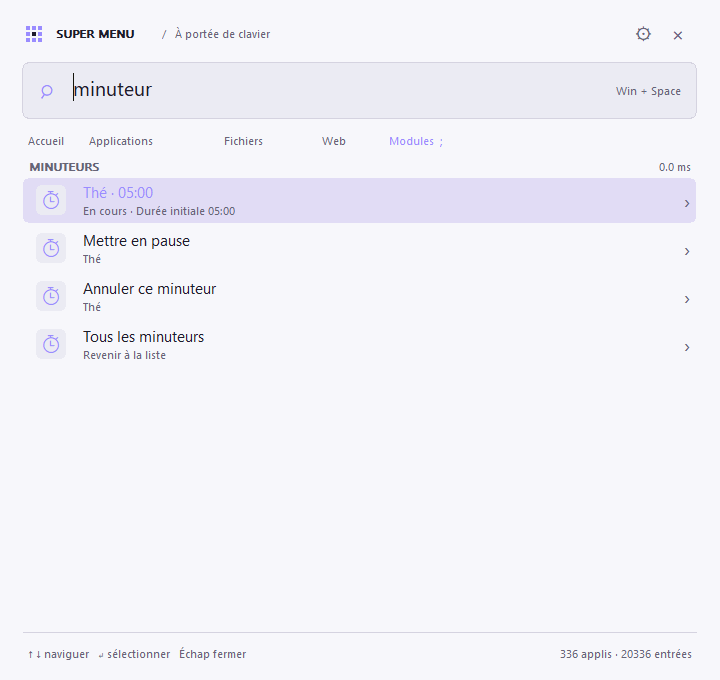
Choose Timer on the home screen or type minuteur 5m, then Enter. A preview shows the duration before starting; typing alone creates no timer. timer is also accepted. The module's suggested shortcuts start five, ten, twenty-five or sixty minutes.
minuteur 5m Thé: five minutes named “Thé”.minuteur 90sorminuteur 01:30: one minute thirty seconds.minuteur 1h 30morminuteur 1:30:00: one hour thirty minutes.minuteur 10: ten minutes, the default unit.
The countdown appears in the Timer list. Enter on a timer opens its actions: Pause, Resume and Cancel. Escape returns to the list. Up to eight timers can coexist, with a maximum duration of twenty-four hours.
At expiry, a short Windows sound accompanies an alert that stays visible until Close, without taking focus. Multiple completions are grouped and can also be acknowledged individually in the module. Timers continue while the menu is hidden and during settings or help dialogs. Sleep time counts; an elapsed deadline is reported when Windows wakes. The application does not wake the computer.
Timers stay in memory: exiting Super Menu cancels them. No service or additional file is needed. Without an active timer, no countdown timer is running.
Settings and index
Settings are in %LOCALAPPDATA%\SuperMenu\settings.json. settings.example.json shows available fields: shortcut, theme, accent color, menu width, result count, commands and directories to index. Window settings are applied with “Save”. After directly editing JSON, exit and restart Super Menu.
file_roots contains only selected directories. Variables such as %USERPROFILE% are supported. Native Windows notifications monitor these roots and Start menus: creation, deletion or modification triggers a background rebuild after coalescing nearby events. The program waits for system notifications while nothing changes. F5 also provides a manual refresh.
The indexer ignores system files, junctions, symbolic links and directories .git, node_modules, bin and obj. It rejects drive roots, shares and network drives. The configured maximum includes files and directories; its absolute limit is 100 000 items. Each traversal is also limited to 4 096 directories, 100 000 examined entries, 24 levels and a five-second budget checked between disk operations. A very large tree therefore produces a partial index: choose targeted roots to include useful files.
index.json locally stores indexed application and file paths. usage.json stores SHA-256 identifiers and launch counters to improve ranking; it stores neither queries nor clipboard text. These files stay in the user's Windows profile.
Clipboard history is disabled by default, limited to text and kept only in memory. Text longer than 32 768 characters and items marked as excluded by Windows are ignored. Disabling the option or closing the program clears Super Menu entries. Exclusion formats are those documented by Microsoft.
Building on Windows
Install Rust with the MSVC toolchain, Visual Studio Build Tools C++ tools and PowerShell 7, then run from the repository:
.\scripts\build.ps1 -Archive -Setup
The script checks formatting, Clippy and tests, compiles in Release, runs the benchmark and prepares artifacts\SuperMenu-Setup-x64.exe and artifacts\SuperMenu-windows-x64.zip. The archive includes benchmark.txt even though the graphical executable prints nothing to the console. The C runtime is embedded in the executable. Building uses the repository's Release options: optimization, LTO and stripped debug symbols. The distributed executable is not compressed at launch.
-Setup fetches NSIS 3.13 into the artifacts directory and verifies the archive's SHA-256 before running it; no tool is installed on the PC. To rebuild only Setup from an existing binary: pwsh scripts/build-setup.ps1 -Executable target/release/supermenu.exe. -NsisDirectory <dossier> allows a local NSIS copy; -Offline prohibits downloading. The tests/windows/setup.ps1 suite installs and removes a dummy copy with unique paths, registry entries and shortcuts; it does not touch a personal installation.
The testing guide describes Rust and Windows suites, dummy data, reports and how to add a regression. scripts/build.ps1 and GitHub Actions also run real Windows menu tests before distributing the binary. Reports remain available as the SuperMenu-test-results artifact, including after a failure.
To develop and measure separately:
.\scripts\test.ps1
cargo test --locked
cargo run --release --locked
cargo run --release --locked -- --benchmark
cargo run --release --locked -- --smoke-test --report smoke.json --snapshot menu.bmp
cargo run --release --locked -- --smoke-test --launch-feedback-test --report feedback.json
.\scripts\measure-performance.ps1 -Executable .\target\release\supermenu.exe -Report .\artifacts\performance.json
The benchmark measures the search engine on test catalogues; results depend on the machine and do not guarantee shortcut or disk latency. --smoke-test briefly opens the menu to check startup and can export a report and a BMP menu capture. With --launch-feedback-test, it simulates a slow launch to verify the pop-in and asynchronous response without opening another application. --smoke-timeout-ms 120000, only with --smoke-test, extends diagnostics to two minutes (maximum five minutes), useful for observing a long operation. --background starts without showing the menu, useful with a shortcut in shell:startup.
measure-performance.ps1 separately measures the menu's first draw, memory, drawing alone and search followed by drawing on an isolated fixture. Its report identifies the exact binary, samples, medians and p95 values. Measurements include inter-process Win32 messages and off-screen drawing; repeated launches generally use already warm Windows caches. They complement the engine benchmark over 20 000 items and impose no fixed hardware-dependent threshold.
GitHub Actions builds and verifies the project on Windows for every pull request and update to main/master. After a successful build on the main branch, the version in Cargo.toml automatically produces a downloadable prerelease, for example v0.1.0. An already published version keeps its files; increase the package version to publish a new prerelease. A v* tag produces a standard release if that version does not yet exist. The code uses the MIT license; no part of Walker's code was copied.